
Rider beta testing
LaGOna Express Rider App Testing Instructions
Thank you for helping test the LaGOna Express Rider App. Follow the access steps, install from Google Play, set up your rider profile, and report any issue with screenshots or screen recordings.
Step 1: Get access and install
Submit your tester email. Give LaGOna personnel the Gmail or Google account you use on your Android phone so it can be added to the rider tester list.
Use the same phone account. Make sure that same Google account is signed in to the Google Play Store on the phone you will use for testing.
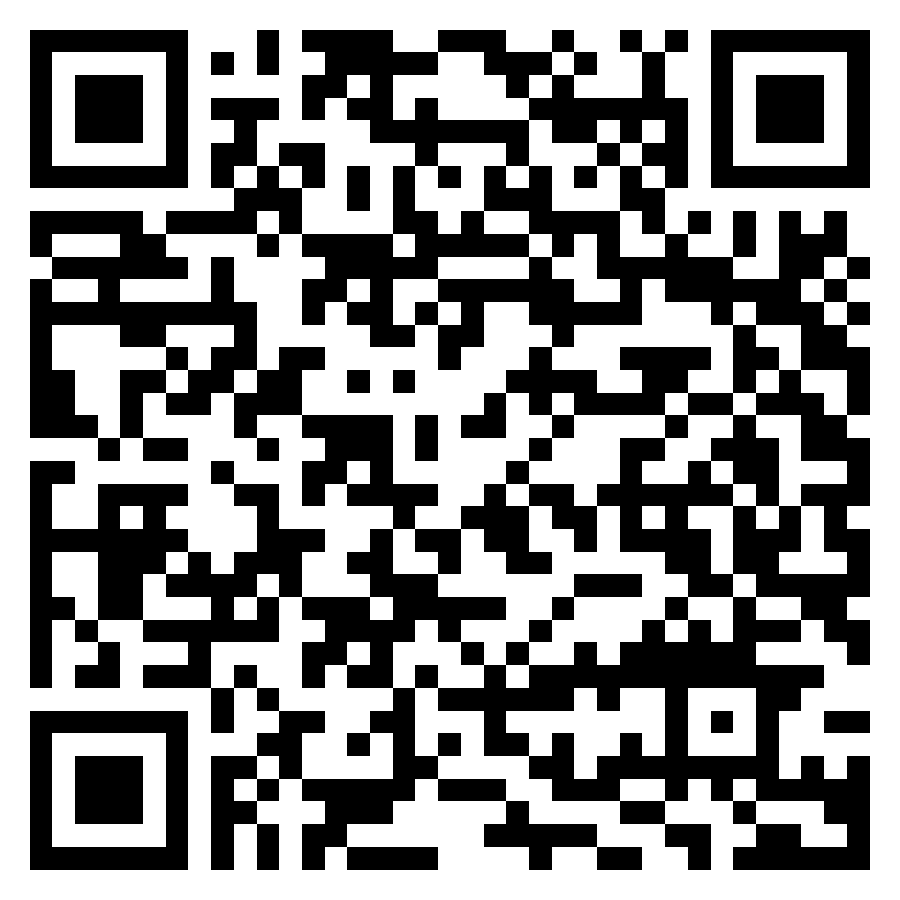
Install from Google Play. Scan the QR code or open the link, accept any tester prompt if shown, then install or update the LaGOna Express Rider App.
Step 2: Rider testing checklist
Please complete these tasks and report bugs, lags, crashes, incorrect location behavior, notification issues, or confusing screens.
- 3.1 Device check: Confirm that the tester email you submitted is signed in on your Android phone and active in the Google Play Store.
- 3.2 Install the app: Open the Google Play link, install the Rider App, and allow the app to finish updating before opening it.
- 3.3 Register or log in: Create a rider account or log in using the email address approved for testing.
- 3.4 Verify your account: If a confirmation email is sent, open the verification link, return to the Rider App, and log in again.
- 3.5 Complete your profile: Add or review your rider details, contact number, vehicle information, and any required documents or profile fields.
- 3.6 Allow permissions: Grant location, notification, camera, and storage permissions when requested so delivery, proof, and alert features can be tested.
- 3.7 Test availability: Switch online and offline, then confirm that your status updates correctly and the app does not freeze or crash.
- 3.8 Test assigned trips: When LaGOna assigns a test order, check if you can view order details, accept the trip, update pickup and delivery status, and complete the order flow.
- 3.9 Sign out: Log out, reopen the app, and confirm that the login screen and session behavior work correctly.
Feedback and bug reporting
If you encounter any issue, take a screenshot or screen recording and send it with your phone model, Android version, testing email address, and a short description of what you were doing.
Please include whether the issue happened during install, registration, email verification, profile setup, permission setup, online status, trip assignment, pickup, delivery, or logout.
Send Feedback